
Download Waver – Desktop Client for Google Wave, Free & Secure
Overview
Waver is a lightweight desktop client built on Adobe Air that brings Google Wave to your computer without the need for a web browser. Designed to be cross‑platform, Waver runs on Windows, macOS, and any operating system that supports the Air runtime, giving users a consistent experience whether they are on a laptop at home or a workstation at the office. The core idea behind Waver is simple: provide a dedicated “app‑like” environment for Wave conversations (called “waves”) and contact management, allowing you to keep your communication focused and free from the distractions of browser tabs, extensions, and pop‑ups. While the official Google Wave web interface remains the most feature‑rich way to interact with the service, Waver offers an alternative that can improve concentration for users who prefer a separate window for their collaborative projects.
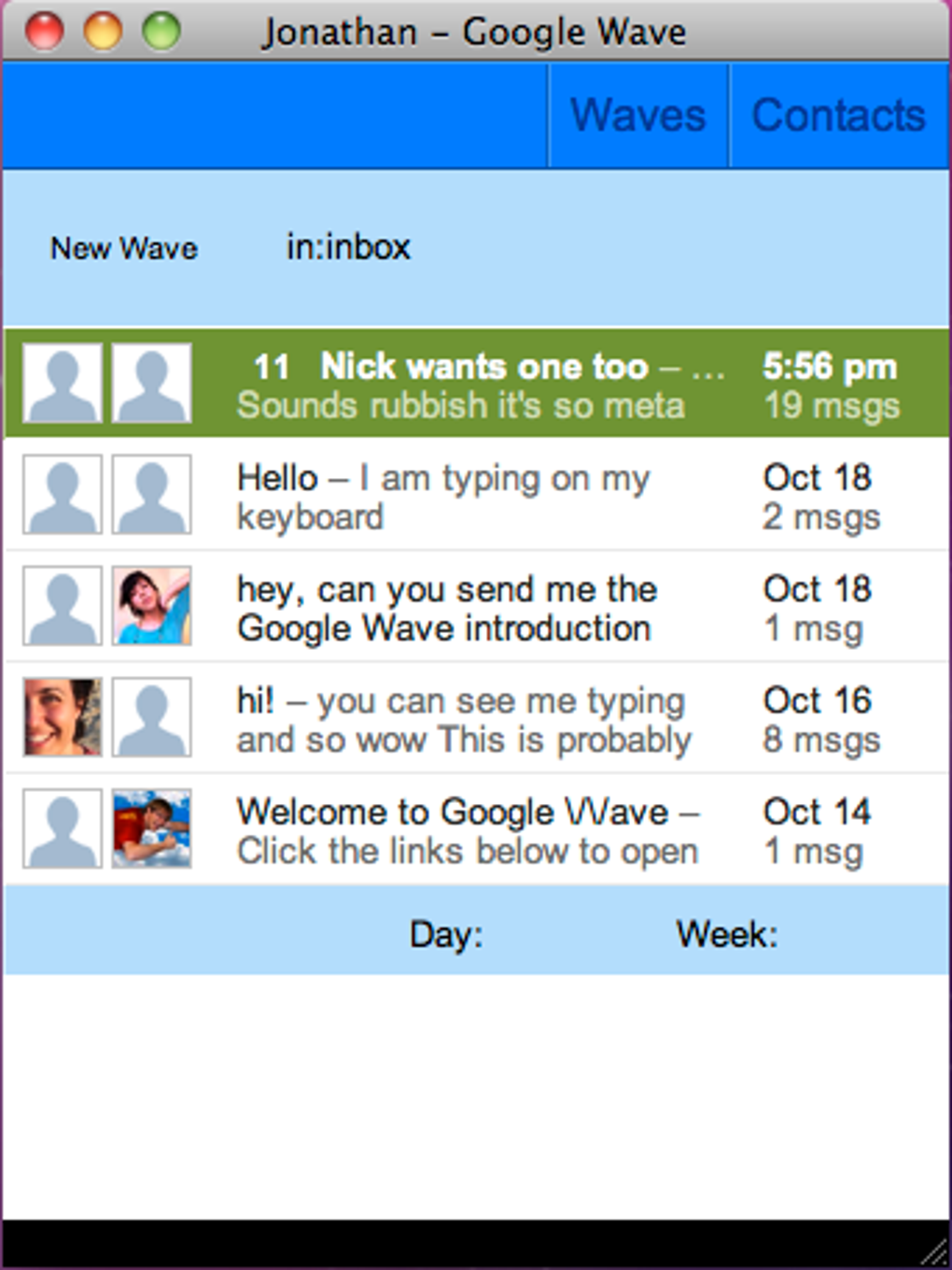
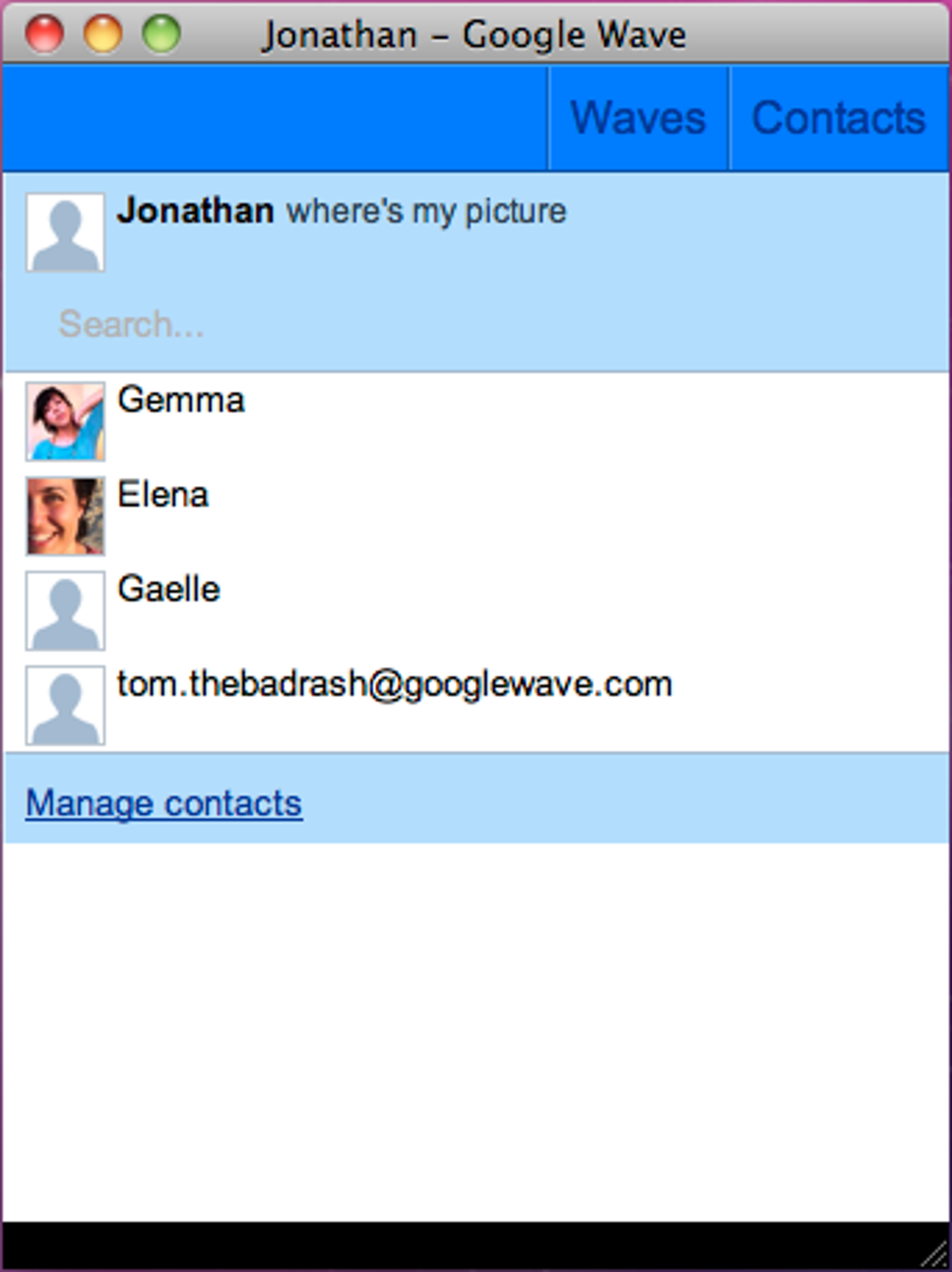
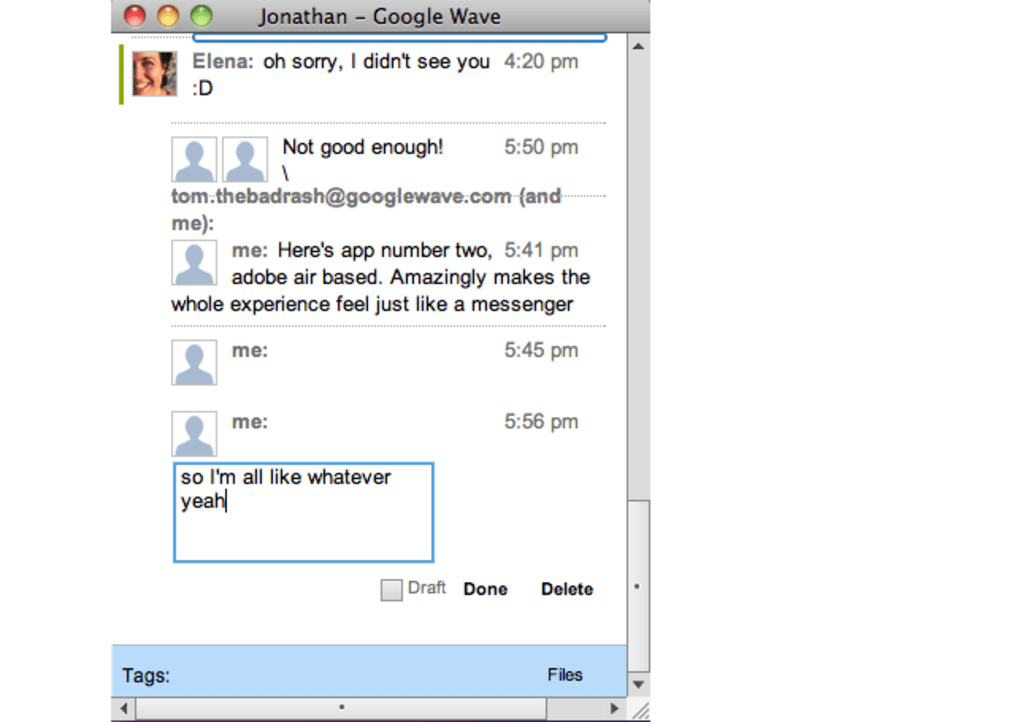
From a functional standpoint, Waver mirrors the essential elements of the original Wave experience. The interface is split into two main tabs: a Contacts pane that lists all your Wave participants, and a Waves pane where each active conversation appears as a separate tab. Users can create new waves, reply to existing ones, and view updates in real time. However, because Waver is a standalone client, it does not introduce any new capabilities beyond what the web version already provides—it merely repackages the existing service into a desktop‑friendly format.
One of the most discussed aspects of Waver is its aesthetic. While the client is visually clean, many reviewers note that the layout feels cramped compared to the spacious web UI. The limited screen real estate can make navigating large threads or multiple participants feel less intuitive. Additionally, the notification system does not solve the original Wave limitation: you still need to keep the application open and actively monitor it to see when a wave has been updated. For teams that rely heavily on instant alerts, this can be a drawback.
Despite these shortcomings, Waver remains a free tool that can be useful for users who want a distraction‑free environment or who simply prefer a desktop shortcut over a bookmarked web page. Its Air‑based architecture ensures that the same binary works across platforms, reducing the need for multiple downloads. As Google Wave evolves—or if a community decides to fork the project—Waver could receive updates that address its current UI constraints and add richer notification handling. Until then, it serves as a functional, albeit modest, companion to the original Wave service.
Key Features
- Cross‑Platform Support: Runs on Windows, macOS, and any OS that supports Adobe Air, providing a consistent experience across devices.
- Dedicated Desktop Window: Eliminates browser clutter, allowing users to focus on Waves without tabs, extensions, or pop‑ups.
- Two‑Pane Interface: Separate tabs for Contacts and Waves make navigation straightforward for quick access to conversations and participants.
- Real‑Time Updates: Syncs with Google Wave servers instantly, ensuring that messages appear as soon as they are posted.
- Free & Secure Download: No hidden fees; the installer is signed and verified to protect against tampering.
- Lightweight Installation: The Air runtime adds only a minimal footprint, keeping system resources in check.
- Offline Availability: While Wave itself requires an internet connection, the client can be opened offline for quick reference to previously loaded waves.
- Simple Project Management: Waves can be organized as projects, making it easy to track collaborative tasks within a single interface.
These features collectively aim to deliver a streamlined, app‑like experience for users who value concentration and a clean workspace. The real‑time sync ensures that you never miss a message, and the two‑pane layout mimics the core concepts of Wave without overwhelming you with the full web UI. Because Waver is built on Adobe Air, it inherits the platform’s security model, meaning that each update is signed and delivered through a trusted channel, reducing the risk of malicious code injection.
Although the feature set is intentionally modest, it reflects the developer’s focus on providing a reliable, no‑frills tool. For power users who need advanced functionalities—such as integrated file storage, rich notifications, or custom extensions—Waver may feel limited. However, for teams that primarily need a clear view of ongoing conversations and quick access to contacts, the listed features cover the essentials while keeping the software lightweight and free to download.
Installation & Usage Instructions
Downloading the Installer
To begin, visit the official Waver download page and click the Download for Windows or Download for macOS button, depending on your operating system. The installer is a single .exe (Windows) or .dmg (macOS) file that contains the Air runtime bundle if you do not already have Adobe Air installed. The download is secured with SSL encryption, so you can be confident that the file has not been altered in transit.
Step‑by‑Step Installation
- Run the Installer: Double‑click the downloaded file. On Windows, you may be prompted by User Account Control; click “Yes” to allow the installer to make changes.
- Accept the License Agreement: Review the terms and click “I Agree” to continue.
- Choose Installation Folder: The default location is usually fine, but you can select a custom directory if you prefer.
- Complete Installation: Click “Install” and wait a few seconds while the Air runtime and Waver files are copied to your system.
- Launch Waver: After installation, a shortcut appears on your desktop and in the Start Menu (or Applications folder on macOS). Click the icon to start the client.
First‑Time Configuration
When you open Waver for the first time, you will be prompted to sign in with your Google account. The authentication flow mirrors the standard OAuth process used by Google services. After successful sign‑in, the client automatically syncs your existing waves and contacts. You can customize the appearance by accessing the Settings menu (gear icon in the upper‑right corner) where you can choose light or dark themes, adjust font sizes, and enable automatic updates.
Daily Usage Tips
Once logged in, the interface displays two main tabs: Contacts and Waves. Use the Contacts pane to search for participants or add new collaborators by entering their email addresses. In the Waves tab, each conversation appears as a separate card; click a card to expand the thread, type your reply at the bottom, and press Enter to send. Because Waver does not provide push notifications, keep the window open or set your operating system’s “Always on Top” flag if you need constant visibility. To organize multiple projects, you can rename waves by right‑clicking the card header and selecting “Rename.”
For power users, the built‑in shortcut keys (Ctrl+N for new wave, Ctrl+F to search) speed up navigation, and the “Export” feature lets you save a wave’s content as a PDF for offline reference. Regularly check the “Updates” section in Settings to ensure you receive the latest security patches and UI improvements.
Compatibility, Pros & Cons
Operating System Support
Waver is compatible with Windows 10/11 (both 32‑bit and 64‑bit), macOS 10.13 or later, and any platform that can run Adobe Air (including Linux distributions with the appropriate runtime). Because it relies on the Air framework, you do not need separate builds for each OS—one installer works across all supported environments. This cross‑platform nature makes Waver a convenient choice for mixed‑device teams that want a unified experience.
Pros
- Free to Use: No subscription fees or hidden costs.
- Cross‑Platform Consistency: Same UI and functionality on Windows and macOS.
- Focused Workspace: Eliminates browser distractions, helping users stay on task.
- Lightweight Installation: Minimal system resources compared to running a full browser.
- Secure Download: Signed installer verified via SSL.
Cons
- Cramped UI: Limited screen space can feel restrictive for large conversations.
- No Native Notifications: Users must keep the app open to see updates.
- Version 1.0 Rough Edges: Some visual polish and functionality are missing.
- Dependent on Adobe Air: Requires the runtime, which adds an extra installation step.
- Less Intuitive Than Web Version: Navigation and settings are not as streamlined.
Overall Assessment
Waver delivers on its promise of providing a dedicated desktop client for Google Wave, but it does so with a trade‑off between simplicity and depth. The application excels at giving users a clean, distraction‑free environment, yet it falls short in delivering the richer interaction model found in the original web interface. For teams that value a minimalistic tool and already have the Air runtime installed, Waver can be a handy companion. However, power users who rely on robust notifications, extensive customization, or a spacious UI may find the web version more suitable.
Frequently Asked Questions
Is Waver completely free to download and use?
Yes, Waver is offered at no cost. You can download the installer from the official website without any subscription or hidden fees.
Which operating systems does Waver support?
Waver runs on Windows 10/11, macOS 10.13 or later, and any system that can install Adobe Air, including many Linux distributions.
Do I need an Adobe Air license to use Waver?
No separate license is required. The Waver installer includes the Air runtime if it is not already present on your computer.
Can Waver send push notifications for new wave activity?
Currently Waver does not provide native push notifications. You need to keep the application open to see updates in real time.
Is my data secure when using Waver?
Yes. Waver communicates with Google Wave over HTTPS, and the installer is signed and delivered via an SSL‑encrypted connection, ensuring that your credentials and wave content are protected.
Conclusion & Call to Action
Waver represents a solid effort to bring Google Wave into a desktop‑centric workflow. Its free, cross‑platform nature makes it an attractive option for users who want a distraction‑free environment, while the reliance on Adobe Air ensures that the application remains lightweight and secure. However, the current version shows signs of being a work in progress—cramped UI, lack of native notifications, and a few polish issues can detract from the overall experience. If you’re already comfortable with the web version of Wave and require advanced features, you may prefer to stick with the browser. Conversely, if you value a focused workspace and are willing to tolerate a few minor inconveniences, Waver can serve as a reliable companion.
Pros: Free, cross‑platform, minimal UI, secure download.
Cons: Cramped layout, no push notifications, early‑stage polish.
Ready to try Waver? $0 Free Download now and experience Google Wave without leaving your desktop. Keep an eye on future updates—each release promises a smoother UI and potentially richer notification options.







